
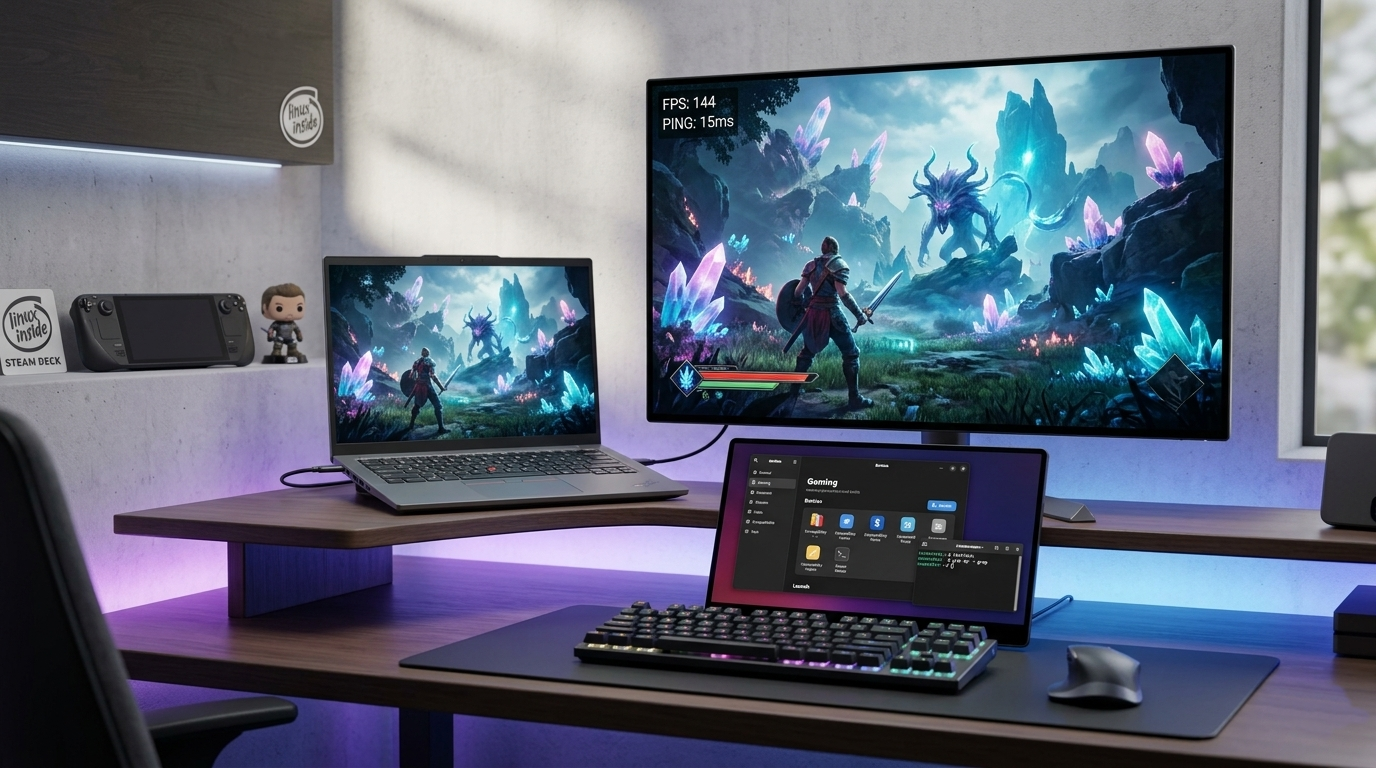
For a long time, the prevailing view was that if you wanted to play games, you should stick with Windows. By 2026, this statement had not only become outdated but was completely overturned. Technological advancements, Valve’s persistent efforts, and brilliant community tools like Bottles have ushered in an era where Linux is not just an alternative but, in many cases, a better environment for gaming.
Whether it’s a laptop with integrated graphics (iGPU) or a desktop beast powered by a dedicated graphics card, the possibilities of Linux are open to everyone.
1. The Basics of Linux Gaming
The modern Linux gaming experience rests on two pillars: the Vulkan API and the Proton layer.
Proton: This is a compatibility layer developed by Valve (an apartment-sized evolution of WINE) that allows games written for Windows to run on Linux at near-native speeds.
DXVK and VKD3D: Hidden inside Proton, these critical components translate Windows-specific graphics calls to Vulkan on the fly. DXVK handles DirectX 9, 10, and 11, while VKD3D takes care of modern DirectX 12 titles, ensuring maximum hardware utilization on both dedicated and integrated GPUs.
2. Bottles: The "Swiss Army Knife"
If there’s one piece of software that has revolutionized the way Windows programs run, it’s Bottles. Instead of cluttering up your system with different versions of libraries, Bottles encapsulates applications into “bottles.”
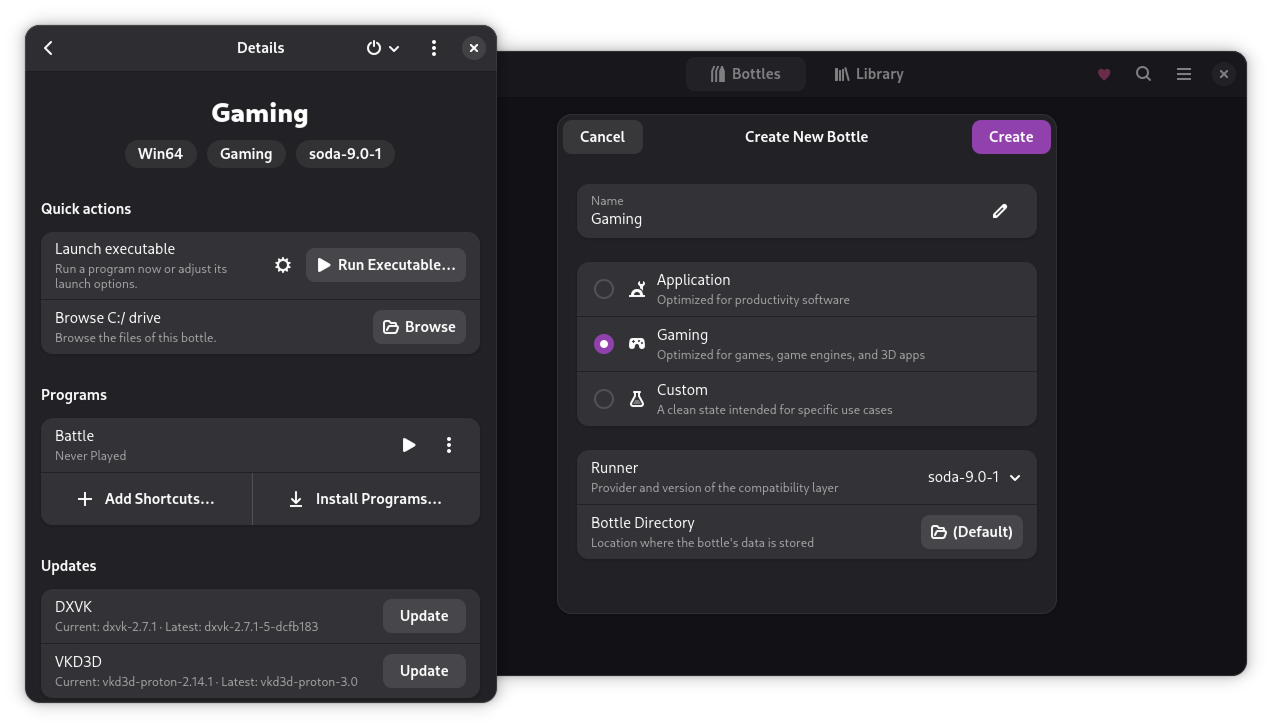
Why use it?
- Isolation: Every game gets its own clean environment. If one bottle breaks, the others remain intact.
- Dependency Manager: With a single click, you can install missing dependencies such as vcredist, various fonts, or DirectX packages.
- Customization: You can specify which runner (such as Soda for Proton-based gaming, Caffe, or Vaniglia) a particular bottle should use for optimal performance.
Installation (recommended with Flatpak):
flatpak install flathub com.usebottles.bottles3. Steam and ProtonDB: The Knowledge Base
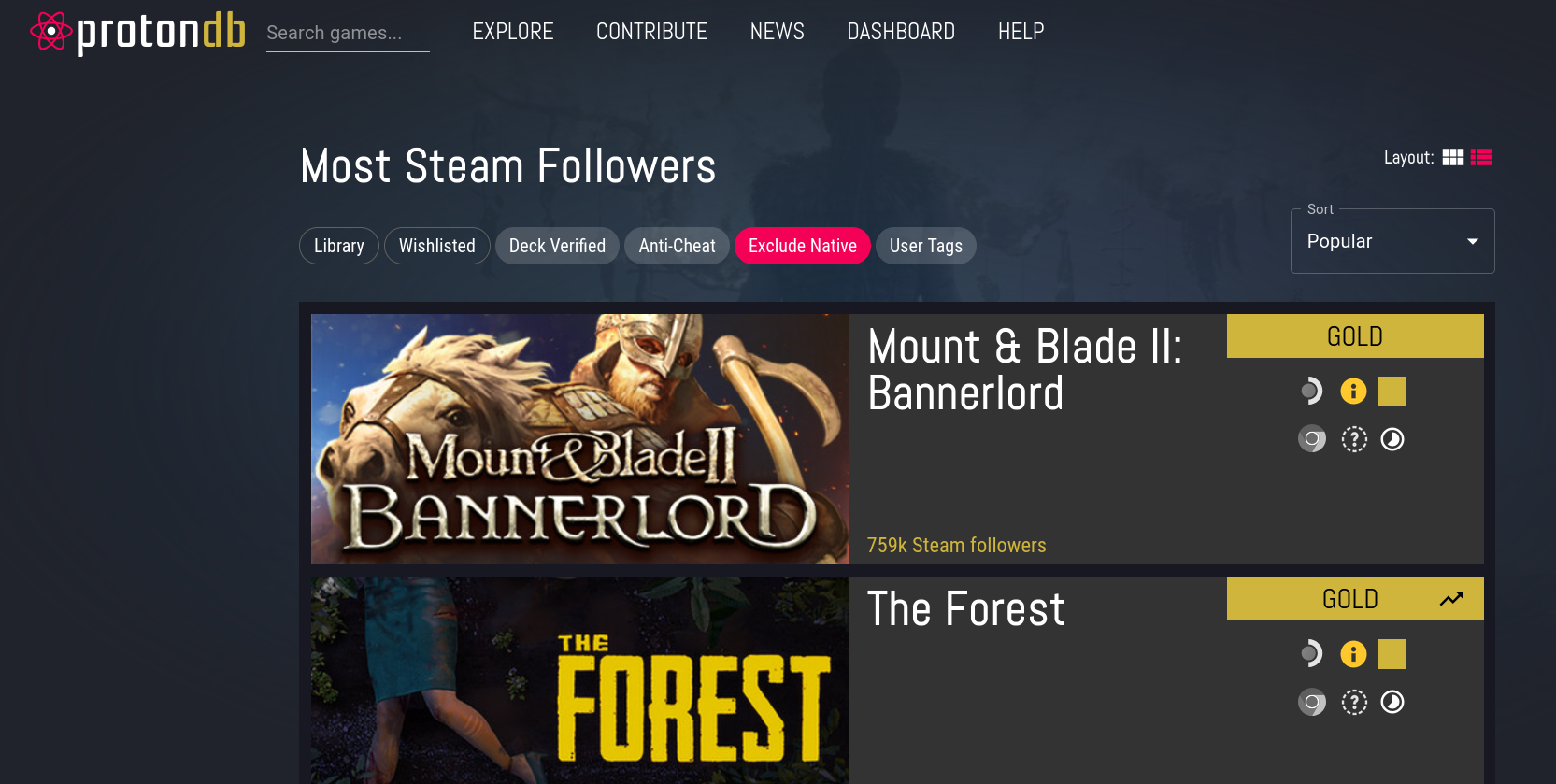
Within the Steam client, you can enable Proton for any game with a single click under Settings -> Compatibility. However, before you make a purchase, visit ProtonDB.com. Here, the community rates (Platinum, Gold, Silver) how well a given game runs on Linux, and we often get specific settings for achieving maximum FPS.
4. Hardware Optimization: From Office Laptops to Gaming PCs
Integrated GPU (iGPU) Tuning
If you’re gaming on a ThinkPad-class machine with an integrated AMD or Intel graphics chip, every FPS counts. Use FSR (FidelityFX Super Resolution) technology! This allows you to run the game at a lower resolution while keeping the image sharp and enjoyable.
Dedicated graphics cards (NVIDIA/AMD)
On desktop computers, one of Linux’s biggest advantages is fewer background processes. While Windows 11 consumes significant RAM and CPU cycles even when idle, a well-configured Linux system (such as Debian or Ubuntu) dedicates all its resources to the game.
- NVIDIA: Always use the proprietary (closed-source) driver for the best performance!
- AMD: The open-source Mesa drivers are native to the system and are world-class.
5. Useful add-ons for the full experience
To get the most out of your machine, you should install the following:
- Gamemode: A tool from Feral Interactive that automatically switches the CPU and I/O scheduler to "game mode."
- MangoHud: A great little on-screen display (overlay) that lets you monitor temperature, FPS, and hardware load.
- Heroic Games Launcher: If you have games not only on Steam, but also on the Epic Games or GOG stores.
Summary
Gaming on Linux today is no longer about painful command-line juggling. With tools like Bottles, the process has become simpler and cleaner than on Windows. Whether you want to turn an old laptop into a retro console or run the latest AAA titles on a gaming PC, Linux is ready.
The recipe is simple: Install a stable distribution, launch Bottles, and enjoy the freedom!