

One of the most persistent myths among users switching to Linux is that these systems require absolutely no maintenance. While it is true that Linux does not suffer from clutter, a centralized registry, or aggressive file fragmentation, it is a huge mistake to believe that it will remain pristine indefinitely.
Over months of active use, modern Linux distributions insidiously accumulate massive amounts of package manager caches, sandboxed container environments, gigantic system logs, and automatic snapshots. If left unchecked, these can quietly consume tens or even hundreds of gigabytes of storage space.
| Component / Tool | Interface Type | Risk Level | Primary Function & Current Status |
|---|---|---|---|
| BleachBit 6.0+ | Graphical (GUI) & Terminal (TUI) | Low / Medium | Active, gold standard (Stable). Safely cleans user application caches and Flatpak residues. |
| Stacer | Graphical Dashboard | Medium | Abandoned / EOL. Excellent for real-time monitoring, but no longer recommended for deep cleaning due to risks. |
| Flatpak Environment | Command Line (CLI) | Low | Built-in core. Removes orphaned runtimes and unnecessary Nvidia driver layers. |
| Systemd Journal | Command Line (CLI) | Low | Built-in core. Restricts and truncates bloated system logs to a reasonable size. |
| Timeshift / Btrfs | Graphical & Command Line | High | Backup core. Manages automatic snapshots that can lock deleted files in the background. |
1. The King of Automated Cleaning: BleachBit 6.0+
BleachBit remains the most popular and reliable open-source maintenance software. The latest major version, 6.0.0, released on April 25, 2026, is described by the project itself as the biggest release in years. Its headline new features are a cookie manager - which lets you selectively keep logins for chosen websites while still purging all other tracking data - significantly deeper cleaning support for Chromium-based browsers (including component cache, shader cache, crash reports, and IndexedDB), and new cleaners for the Vivaldi and Zen browsers. Shortly after the 6.0 release, the project also began publishing a separate, experimental Text User Interface (TUI) built on the 6.0 backend, aimed at server administrators and SSH users - though this is currently in alpha and not yet part of the stable release.
Warning: Using this program without experience may cause system problems. Use it only with full knowledge and caution.
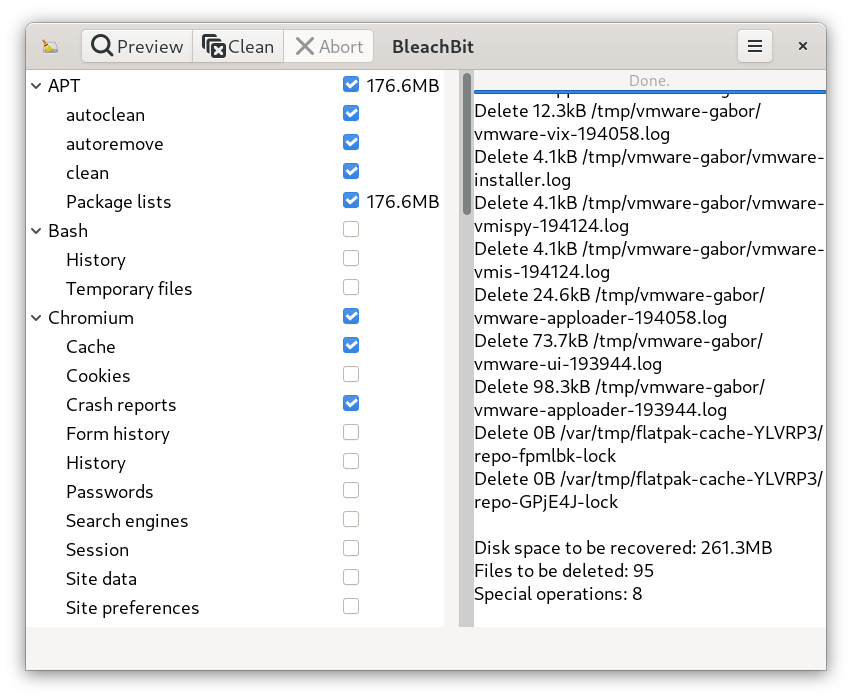
When using BleachBit, it is critical to understand the two launch modes:
- Standard user mode: During a normal launch, the software only accesses your local user profile. It securely deletes browser history, image thumbnails, broken shortcuts, and temporary application files.
- Administrator (Root) mode: When you launch it as an administrator using sudo or a separate icon. Use this exclusively to clean up system-level language localizations (removing languages you don’t speak) and to clear the caches of package managers (apt/dnf).
Warning: In administrator mode, only select the “Clear free disk space” option if you have plenty of time to spare, as this overwrites empty sectors with zeros for security reasons to ensure permanent deletion, which is an extremely slow process.
2. The Visual Trap: What’s the Deal with Stacer?
If you visit just about any Linux forum or blog, you’ll find people recommending Stacer as the “Linux Task Manager and Optimizer.” Visually, it’s truly impressive: it displays real-time CPU, memory, and disk usage on a beautiful dashboard and provides convenient toggles for managing startup apps.
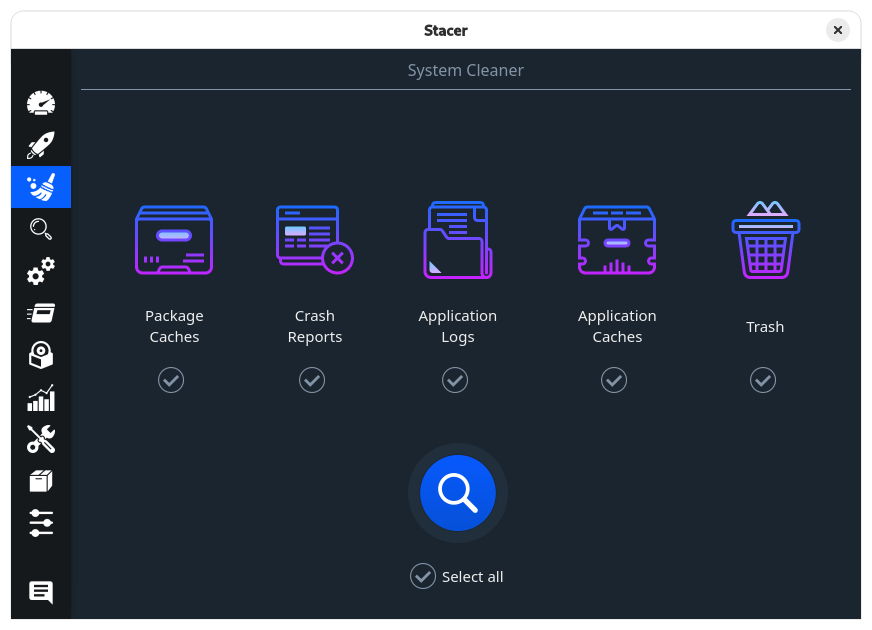
However, the unspoken truth in the Linux community is that Stacer’s development officially ceased years ago, and the project is abandoned. Although it still installs and runs without issues on modern systems, its internal cleaning filters are outdated.
If you use Stacer for deep system cleaning, the lack of maintenance can cause broken dependencies or system crashes.
Best practice: Use Stacer exclusively for visual monitoring and disabling programs that start automatically, but leave deep file cleaning to BleachBit or the terminal.
3. The Hidden Space-Eaters: Flatpak and Snap Containers
Modern package delivery systems like Flatpak have revolutionized software distribution on Linux, but they come at a significant cost in terms of disk space. Unlike traditional system packages, Flatpak applications use heavy, isolated runtime environments (such as specific GNOME or KDE platform versions). When you uninstall a Flatpak program, the underlying runtime environment often remains on the system.
To prevent these zombie frameworks from taking up space, it’s a good idea to run the following command in the terminal once a month:
flatpak uninstall --unusedThis command safely scans the system, finds environments that are no longer associated with any installed applications, and permanently deletes them. This is almost guaranteed to free up 5-12 GB of storage space, especially if remnants of older, closed-source Nvidia drivers are lingering.
4. Deep System Cleanup: Systemd and Package Managers
Due to modern permission rules, graphical cleaners cannot access certain low-level log files. There are two areas to focus on:
- Managing the Systemd Journal
The Systemd logging system (journald) records every service event, kernel warning, and application error. By default, many distributions do not limit its size, so log files can easily grow to 4-10 GB in a single year. With a single command, you can instruct the system to delete all log entries older than one week:
sudo journalctl --vacuum-time=7d- Clearing the package manager’s cache
When you update the system, your package manager - whether it’s APT (Ubuntu/Debian), DNF (Fedora), or Pacman (Arch) - downloads every single installation file to your local drive. It keeps these even after installation so that you can easily downgrade the software if necessary. You can safely clear these outdated downloads:
On Debian/Ubuntu systems:
sudo apt cleanOn Fedora systems:
sudo dnf clean allOn Arch Linux systems:
sudo pacman -Scc5. The Invisible Storage Killer: Btrfs Snapshots and Timeshift
As modern distributions switch to advanced, copy-on-write (Btrfs) file systems or use automatic backup tools like Timeshift, users often encounter a mysterious phenomenon: their disk fills up completely, even though BleachBit says there’s nothing to delete.
This is because system snapshots do not copy files, but track changes. If you download a 50 GB game and then delete it, but an automatic Timeshift snapshot was taken in the background while the game was still on your disk, those 50 GB of data remain completely locked in the read-only backup layer.
The golden rule: Regularly open the Timeshift graphical interface (or run the sudo timeshift --list command), review your previous backups, and delete the old ones. Keeping more than three to five system snapshots at a time is an unnecessary luxury that directly threatens your free storage space.